
Quick Start
Once logged in at https://drive.supplynow.org/auth/login you’ll be welcomed by this screen.
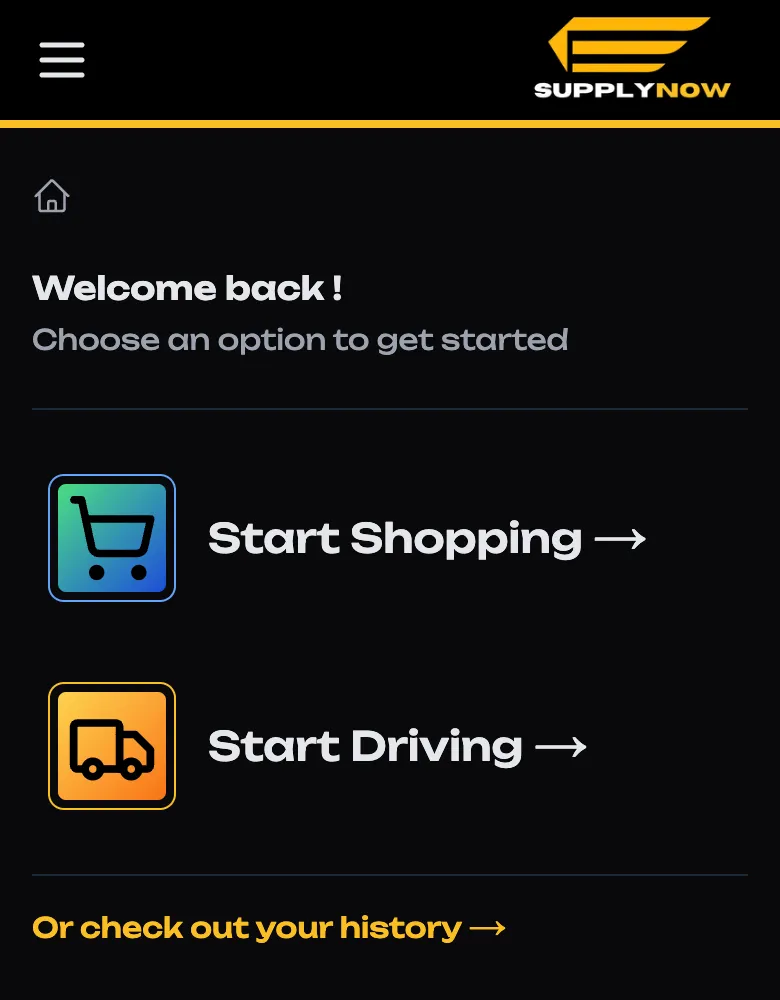
You should select “Start Shopping” or go to https://drive.supplynow.org/a/shop
Assigned Orders List
This page let’s you take a look at the orders you’ve been assigned. You can click on any one of these to be taken to that order’s details page.
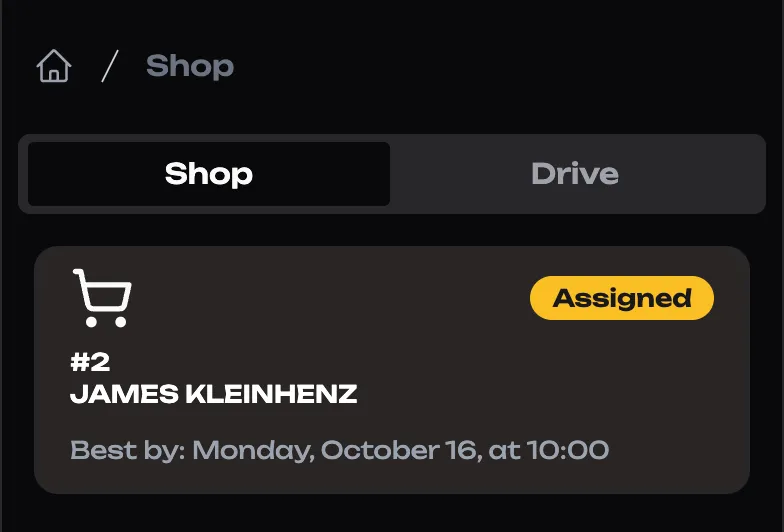
If you’re not assigned anything, an empty state will ask if you want to “See all Orders”
Accept an Order
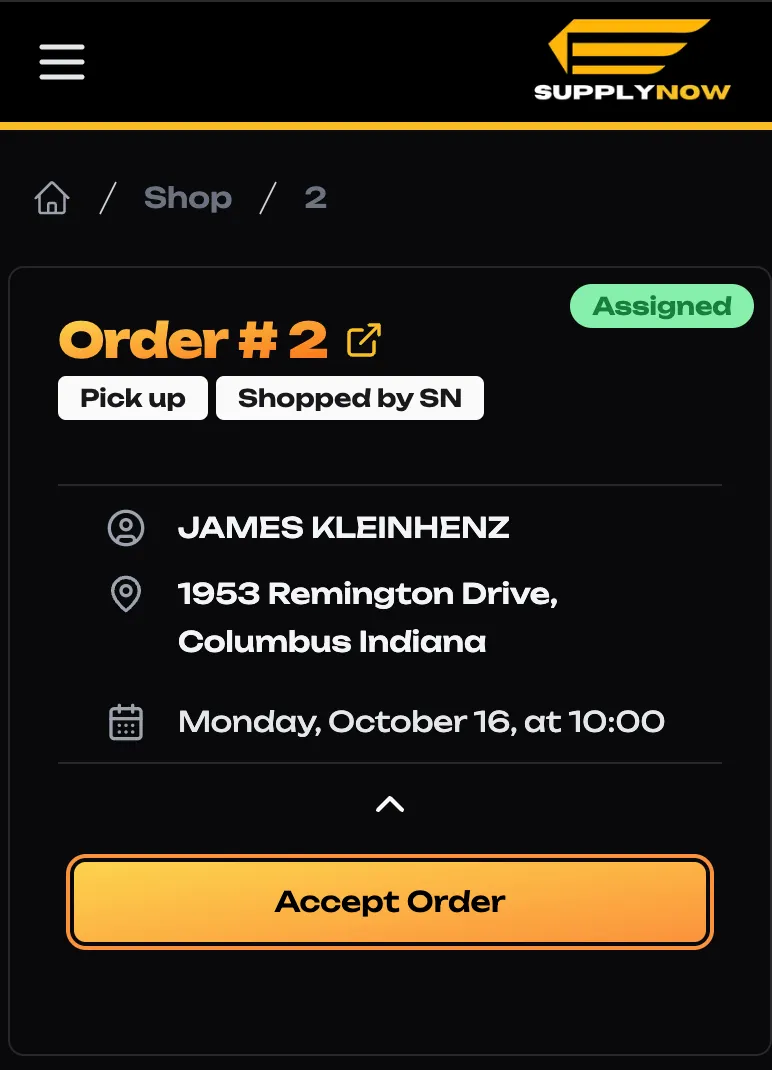
To get started on an order, press “Accept Order”
Begin Shopping
Now that we’ve accepted the order, it’s time to make our way through the shopping list.
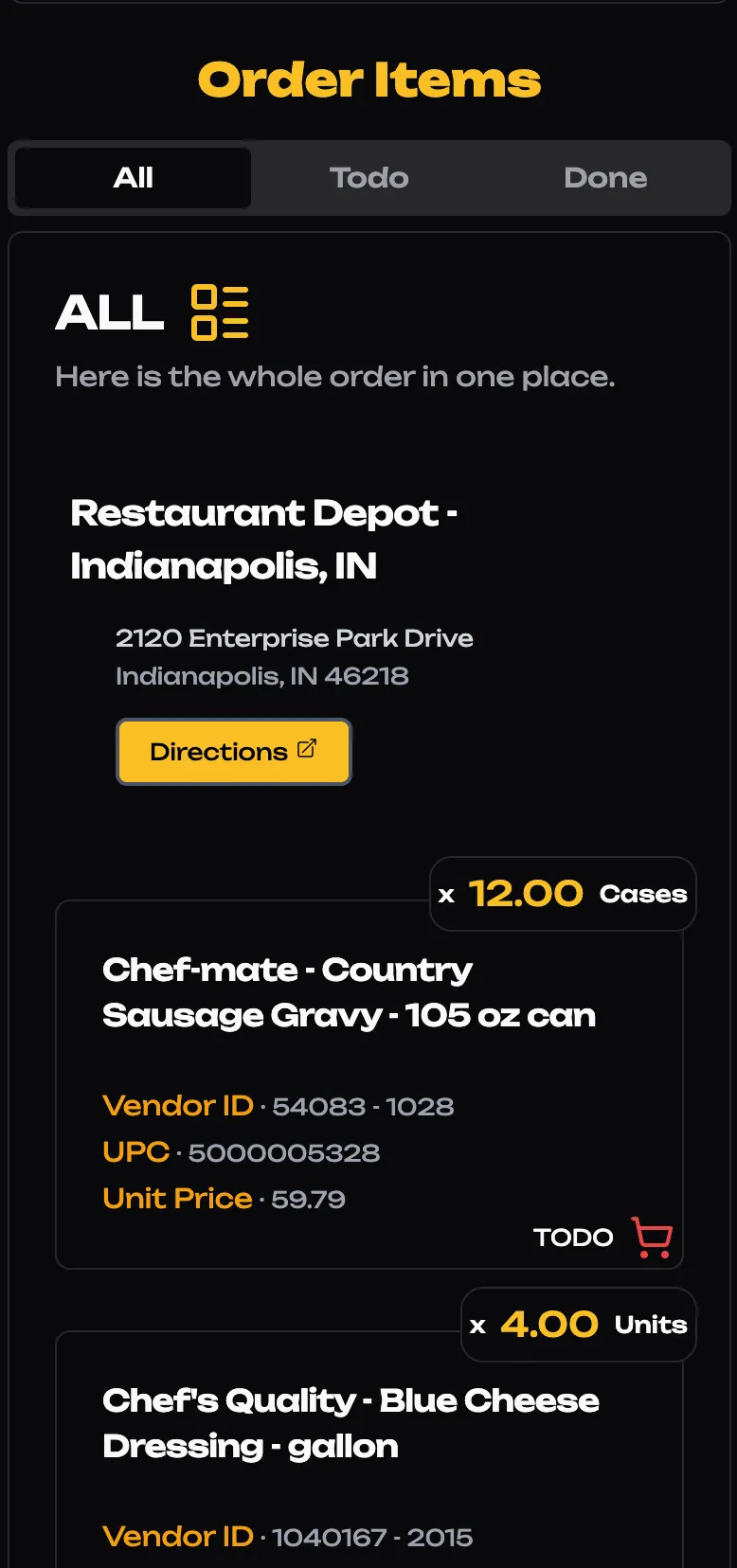
Record Product Amounts
As you’re shopping the item list, you can record the quantities shopped by pressing each item.
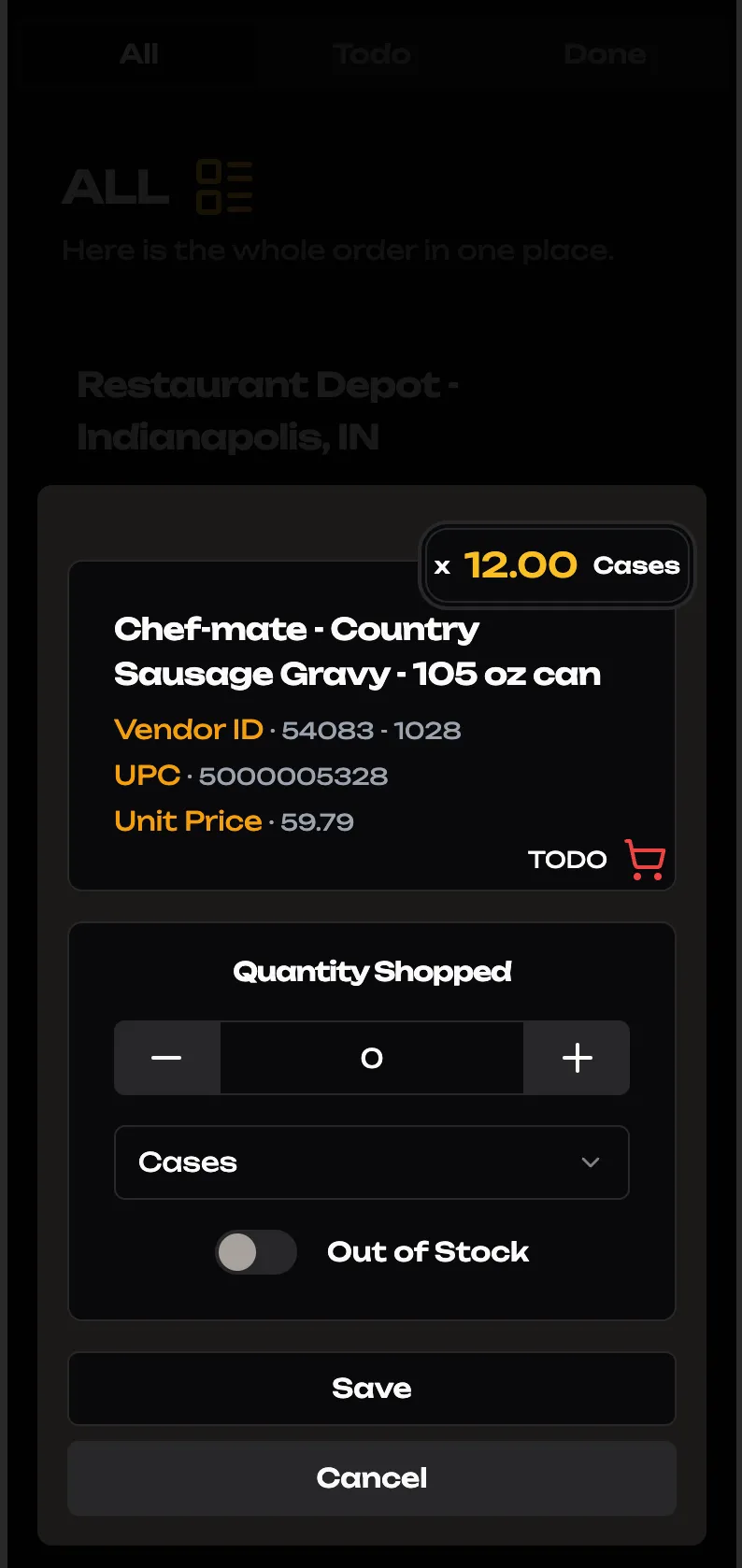
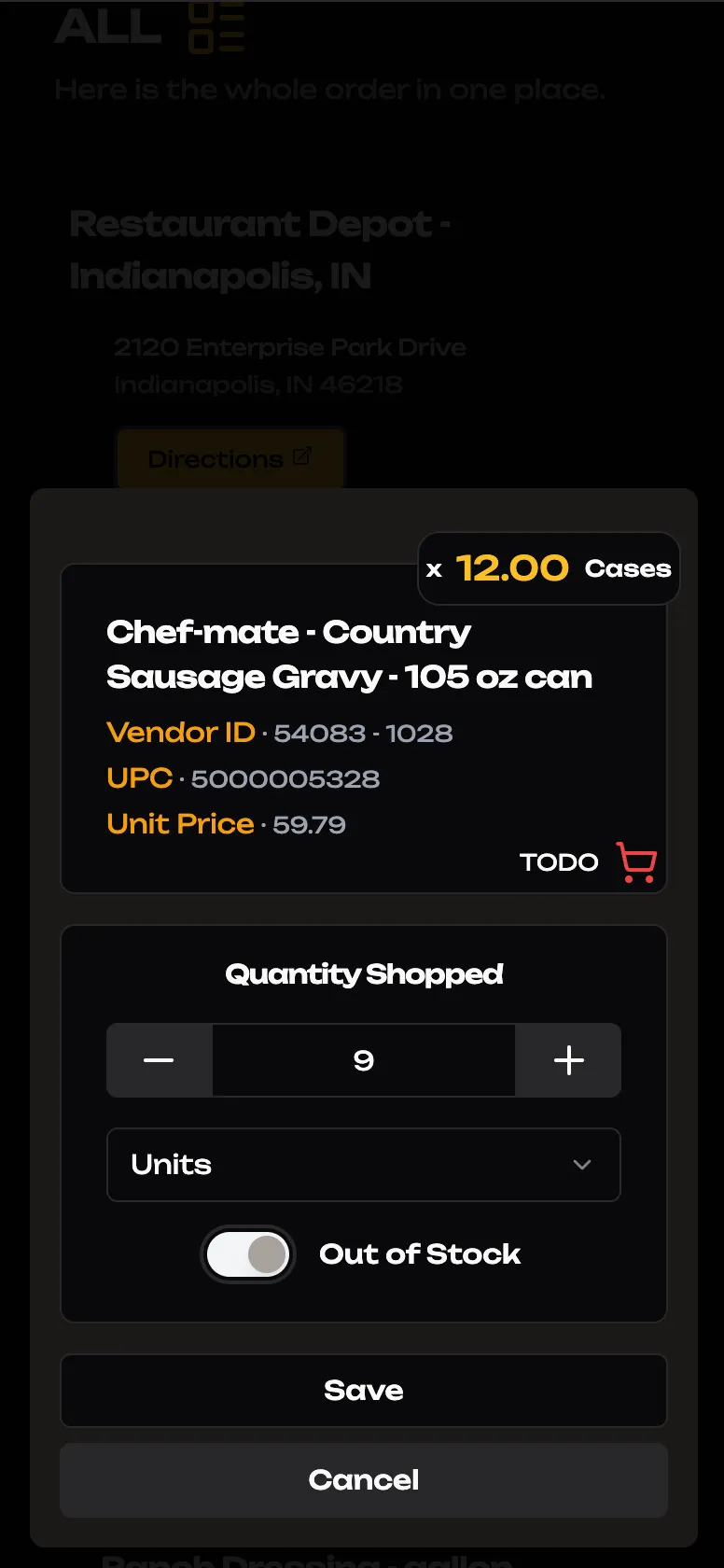
Recording Out of Stock Products
If you encounter an item that is out of stock, you should enter the amount you were able to procure and switch the out of stock switch on.
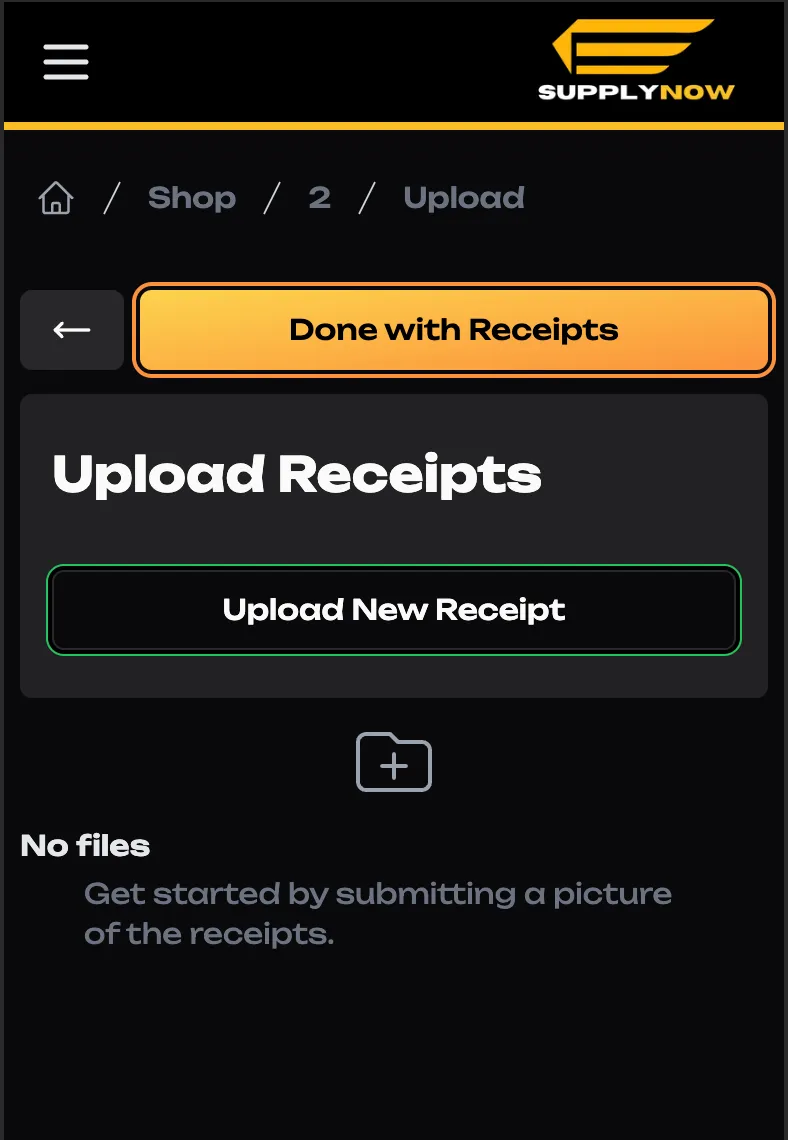
Upload Receipts
Once you’re done shopping. There’s a good chance you’re order requires you check out with a cashier. Be sure to submit any receipts through the app. To start, press “Upload New Receipt”
Taking the right picture
When submitting images of a receipt it’s important to do so in good lighting and against a dark background.
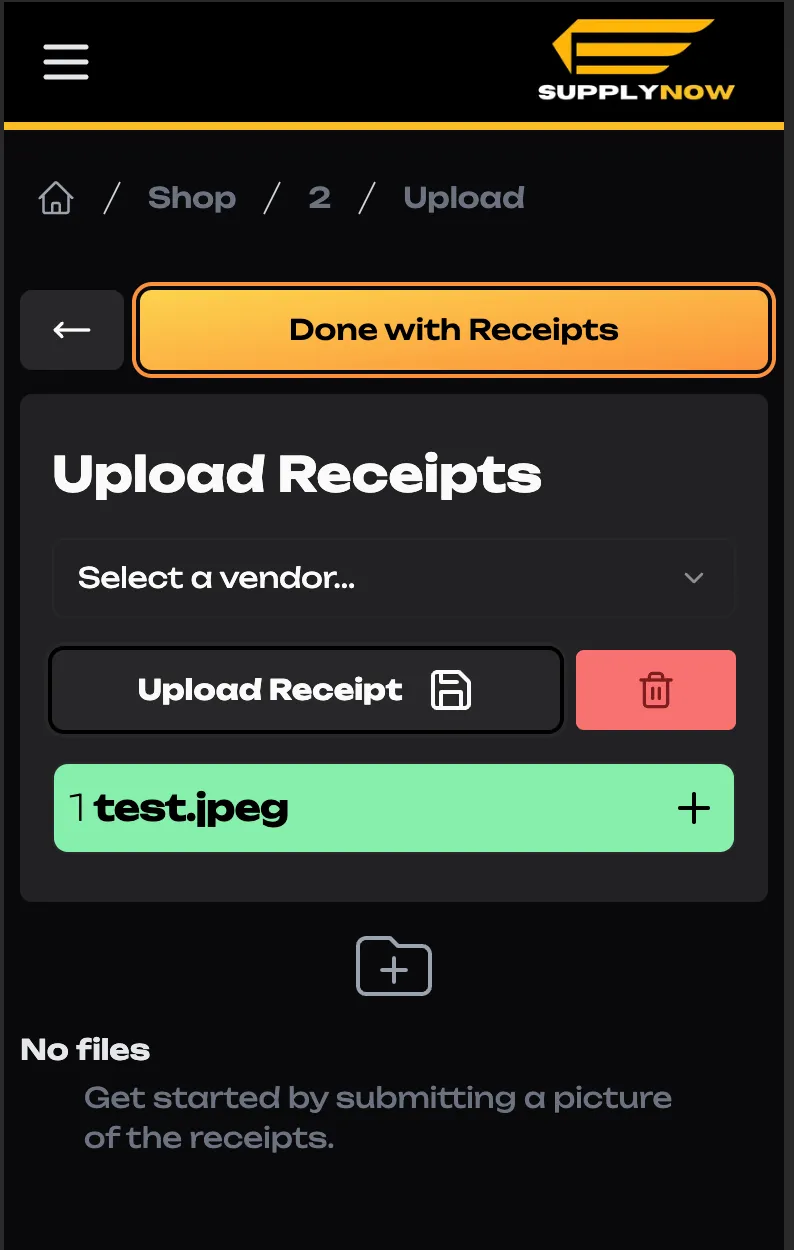
Submitting the image
Be sure to upload the image before completing the process. If the image was successfully submitted, it will appear on the bottom of the page.
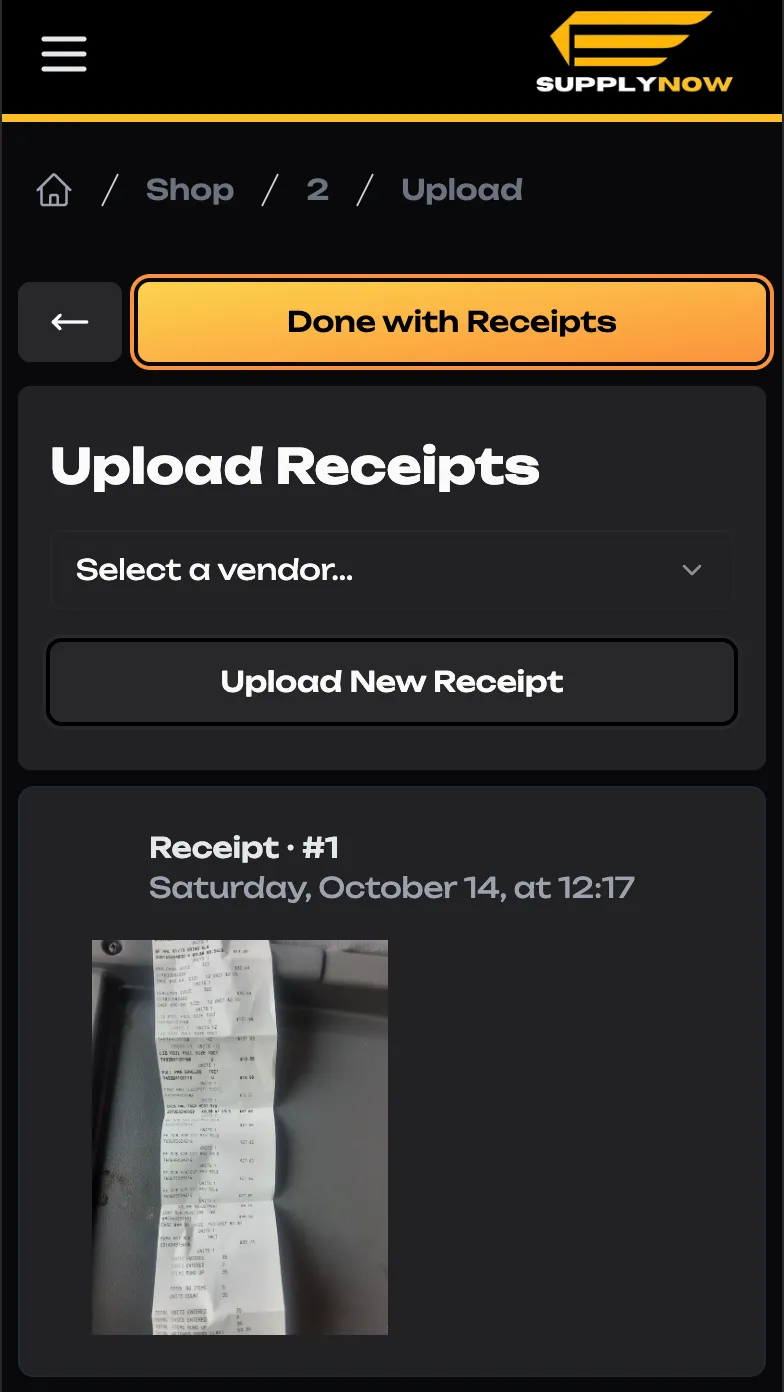
Once done, you can press “Done with Receipts”
Complete your Shopping
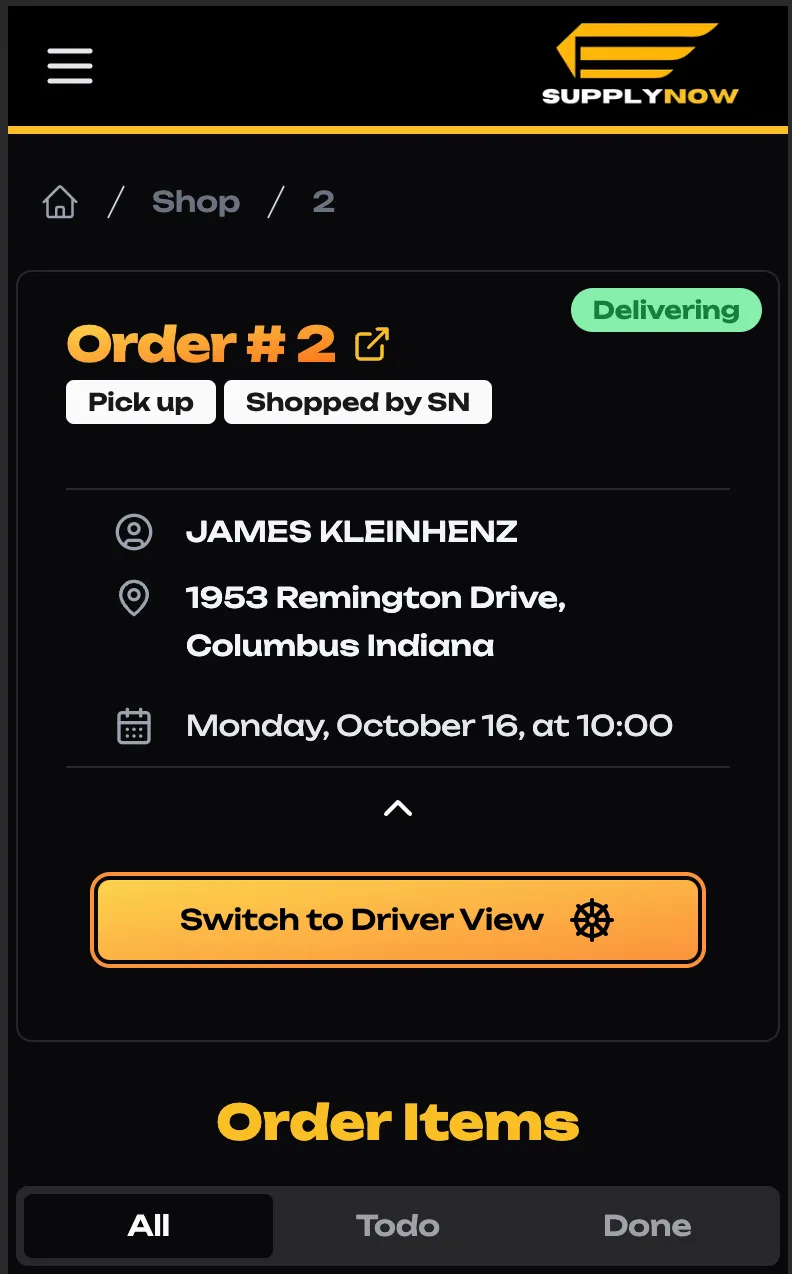
Boom! You’re done. If you did everything right, the order should look like this.