

OrderSense
OrderSense is SupplyNow’s SMS ordering system. It’s basically a chat bot that helps customers place orders on the site.
The Basics
A text-line is a phone number, think +1 (216)-606-8330. We have several of these
Text-lines can be hooked up to different Processing Methods. Processing Methods are the computer programs that receive, interact, and manage incoming messages to a text-line.
What is OrderSense?
OrderSense is SupplyNow’s newest processing method. When a message hits a text-line that uses OrderSense, the message is “parsed” with AI (more on this later). Parsing is the process through which OrderSense can figure out what details about an order are in message. After saving the parsed order details, OrderSense then figures out what details are missing to create an Order, and sends back a response to the user asking for those details.
Fundamentally, the goal of OrderSense is to create an Order from a series of text messages.
What are Text Orders?
When I say that OrderSense “saves” the order details, I’m referring to Text Orders.
Text Orders contain every details of an interaction between a user’s phone number and a text-line using OrderSense. This is what one of these looks like on the admin site:
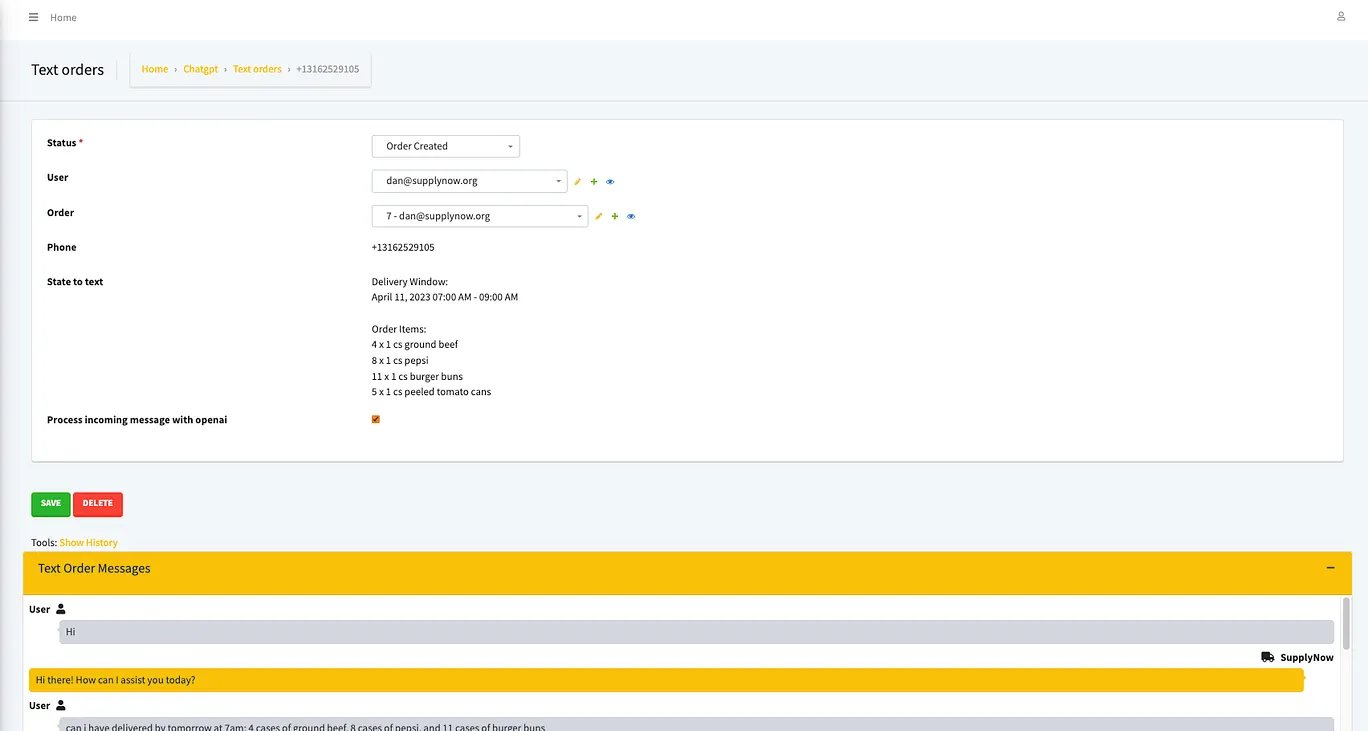
This page has two main sections: (1) Details and (2) Messages. Details contains the extracted information that OrderSense recovered by “parsing” the Messages.
It also contains a manual interrupt button (see section below for this does). Messages is a chat interface that lets dispatchers see all messages interchanged between the user’s phone and the text-line
Parsing & AI
The required fields to create an order are:
- Delivery window start
- Delivery window end
- Order Items
- Customer Location
- Placed by (Customer Location User)
Since the goal of OrderSense is to create an Order using SMS, these are the fields that we are interesting in capturing from text messages.
The initial focus of OrderSense is to parse the delivery window and the order items. For this task, OrderSense employs the use of GPT4 from OpenAI.
This model gives us the ability to “parse” or “translate” natural language into something our server can understand: Order Items and Datetime Objects (a computer’s way of representing a point in time). For example,
Message: "Please deliver by tomorrow at 11am: 2 cases of ham" Results:
{
delivery_window: {
start: "2023-04-18T10:00:00.000000",
end: "2023-04-18T11:00:00.000000"
},
order_items: [
{
name: Ham,
quantity: 2,
category: Animal Products,
unit: Cases
}
]
}
Once OrderSense has the this nailed down. It moves to it’s second focus: figuring out the User that is texting the number and the Customer Location they’re ordering for.
Kill Switch
This disables all responses from the AI assistant, and makes sure the conversation can carry on manually.
Text Order Attribution
OrderSense uses the customer’s phone number to query the database.
If it finds a User with that number that is authorized to order for one Customer Location, it’s done. It can make an order.
If it finds that the User has several locations, it will ask the customer to select one.
If it doesn’t find either a User or a Location. It will ask the customer for an address, and it will alert dispatchers that “Action is Required” on Slack.
If a User of Location is not found, the dispatcher must do the following actions:
- Find or create a User with the phone number in question
- Find or create a Customer & Customer Location that matches the address sent by the User
- Link the Text Order with User you just created/found AND save the page.
- Click the “Create Order” Action button at the top of the TextOrder page
SMS Updates
It’s quite common that a customer will text the OrderSense text-line after their Order has been placed. OrderSense will try to help the customer to best of it’s ability.
If confronted with a situation it cannot solve, OrderSense is instructed to handoff the conversation to a dispatcher. It will do this by turning on the “Kill Switch” and notify through Slack.
Directory
Recommended OrderSense
Production
The one clients use
- +1 (351) 666-5661
Sandbox
The one you test and play around in
- +1 (216) 340-9440
Legacy System
The one that send a notification on #dispatch.
It’s the default for most client at the moment and has no automations at all.
Production
- +1 (216) 999-5436
- +1 (216) 606-8330