Quick Start
Once logged in at https://drive.supplynow.org/auth/login you’ll be welcomed by this screen.
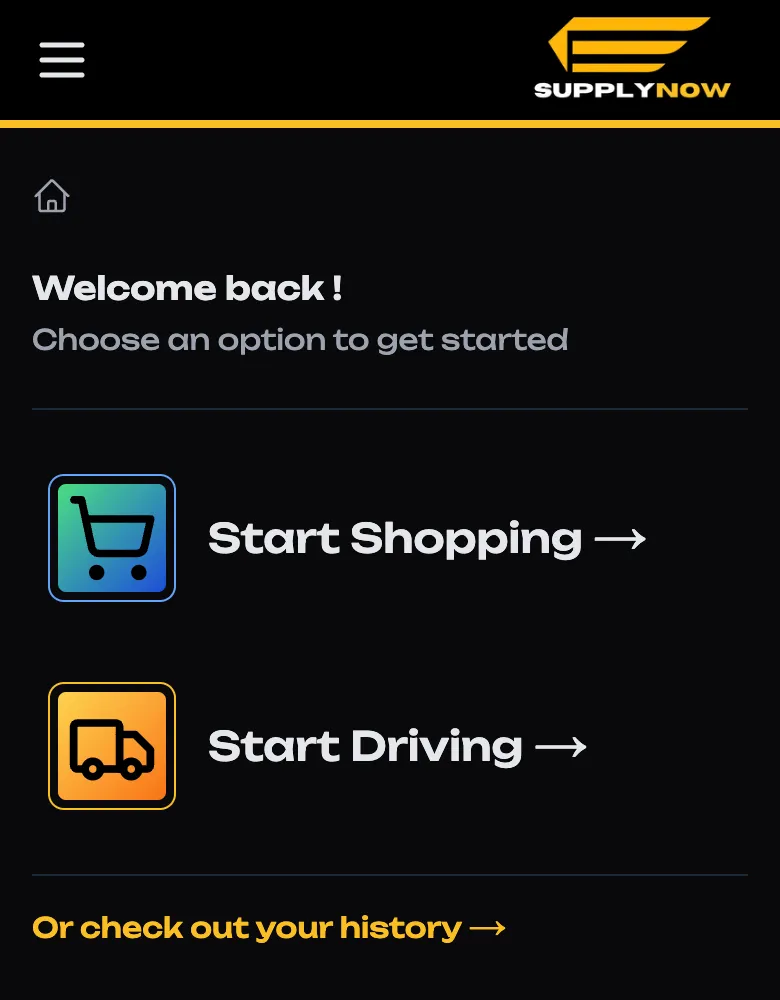
You should select “Start Driving” or go to https://drive.supplynow.org/a/drive
Assigned Orders List
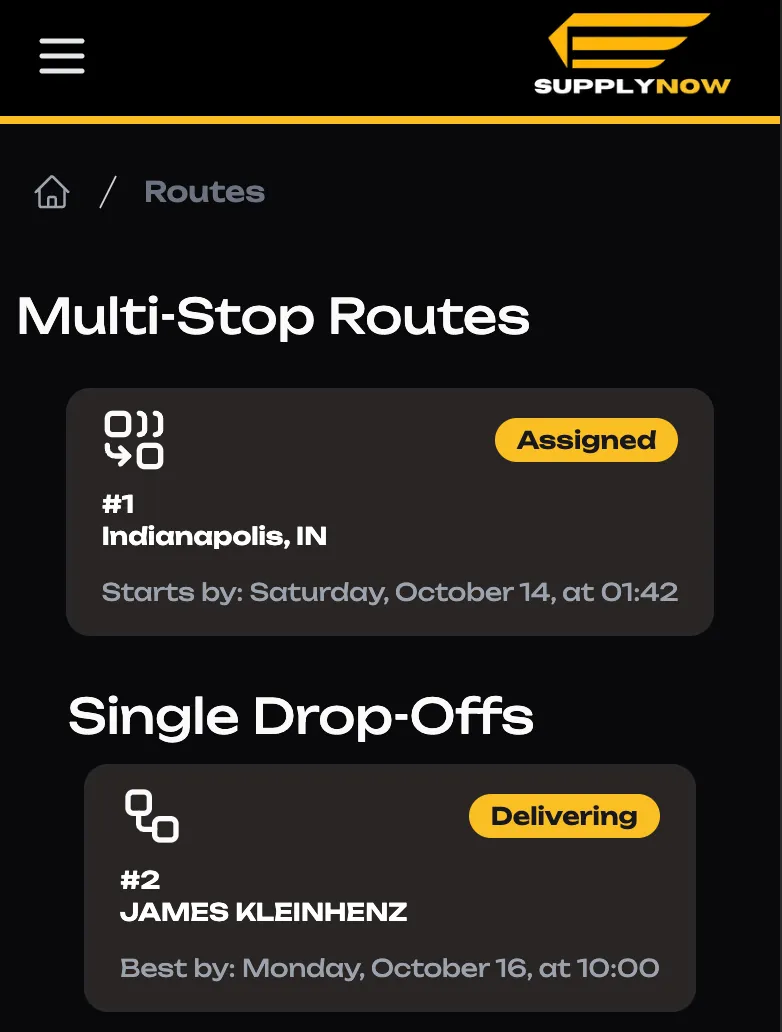
This page let’s you take a look at the orders you’ve been assigned. You can click on any one of these to be taken to that route’s details page.
If you’re not assigned anything, an empty state will ask if you want to “See all Routes”
Single Drop-Offs
Pick up and Drop off
These are simple deliveries. All you’ve got to do is drive the items to the customer’s location. The directions to the pickups and dropoffs are under “Get Directions”
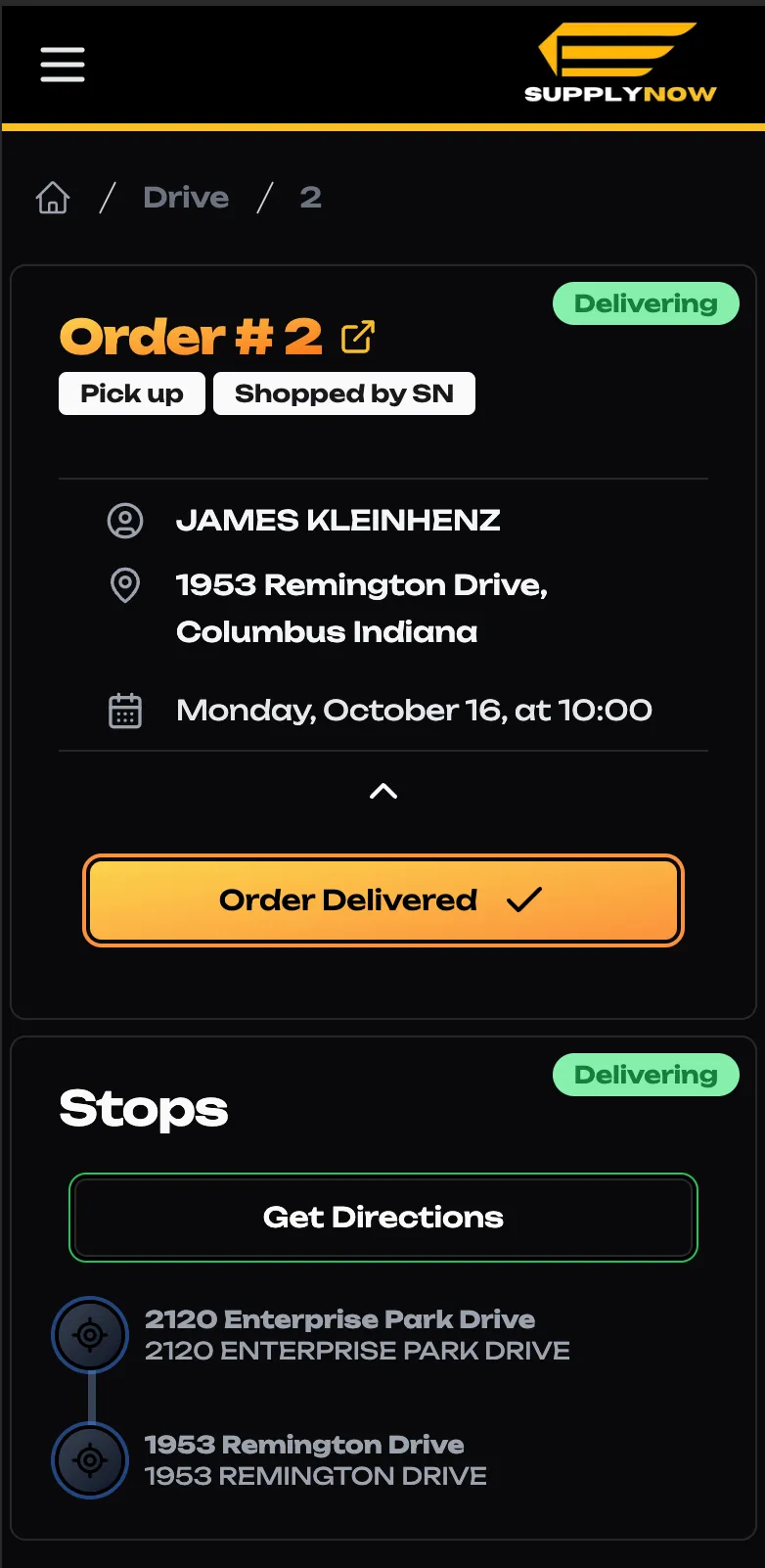
Once you’ve dropped off, you can press “Order Delivered”
Multi-Stop Routes
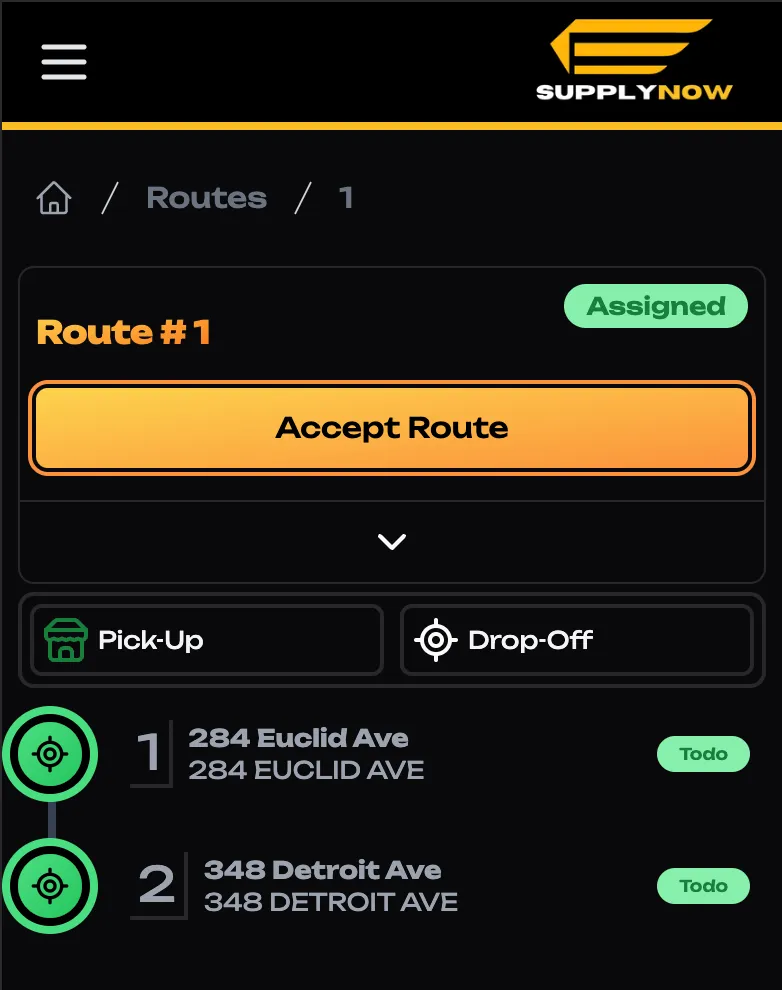
Accept a Route
To get started on a multi-stop route, press “Accept Route”
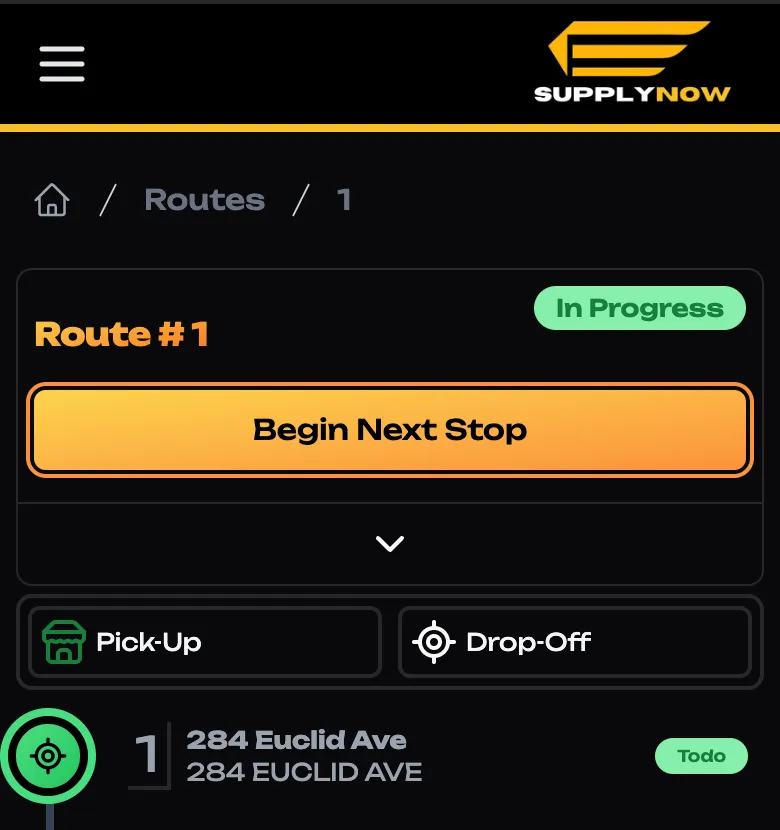
Begin the Next Stop
Now that we’ve accepted the route, it’s time to make our way through the stop list.
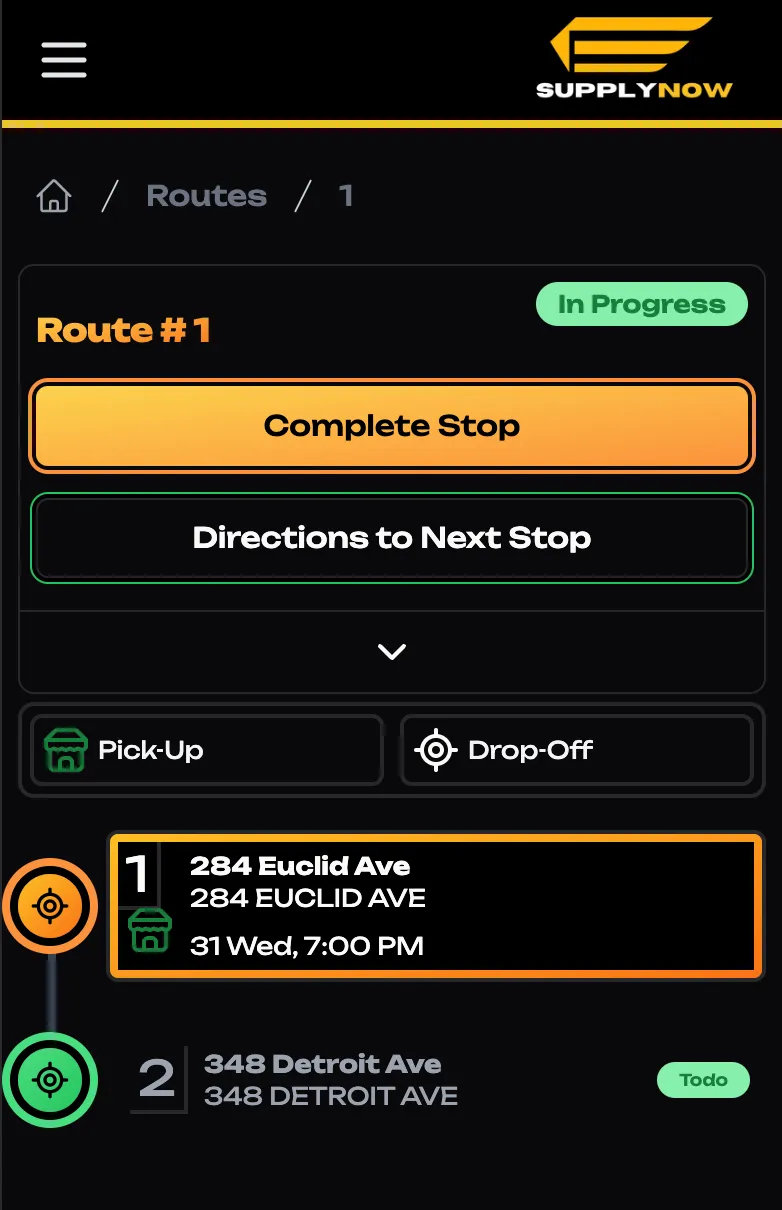
Completing a Stop
Once you’ve dropped off at the active stop, you can press “Complete Stop”
Proof of Delivery
The most important thing to take care here is to submit an image proving that you have delivered the goods.
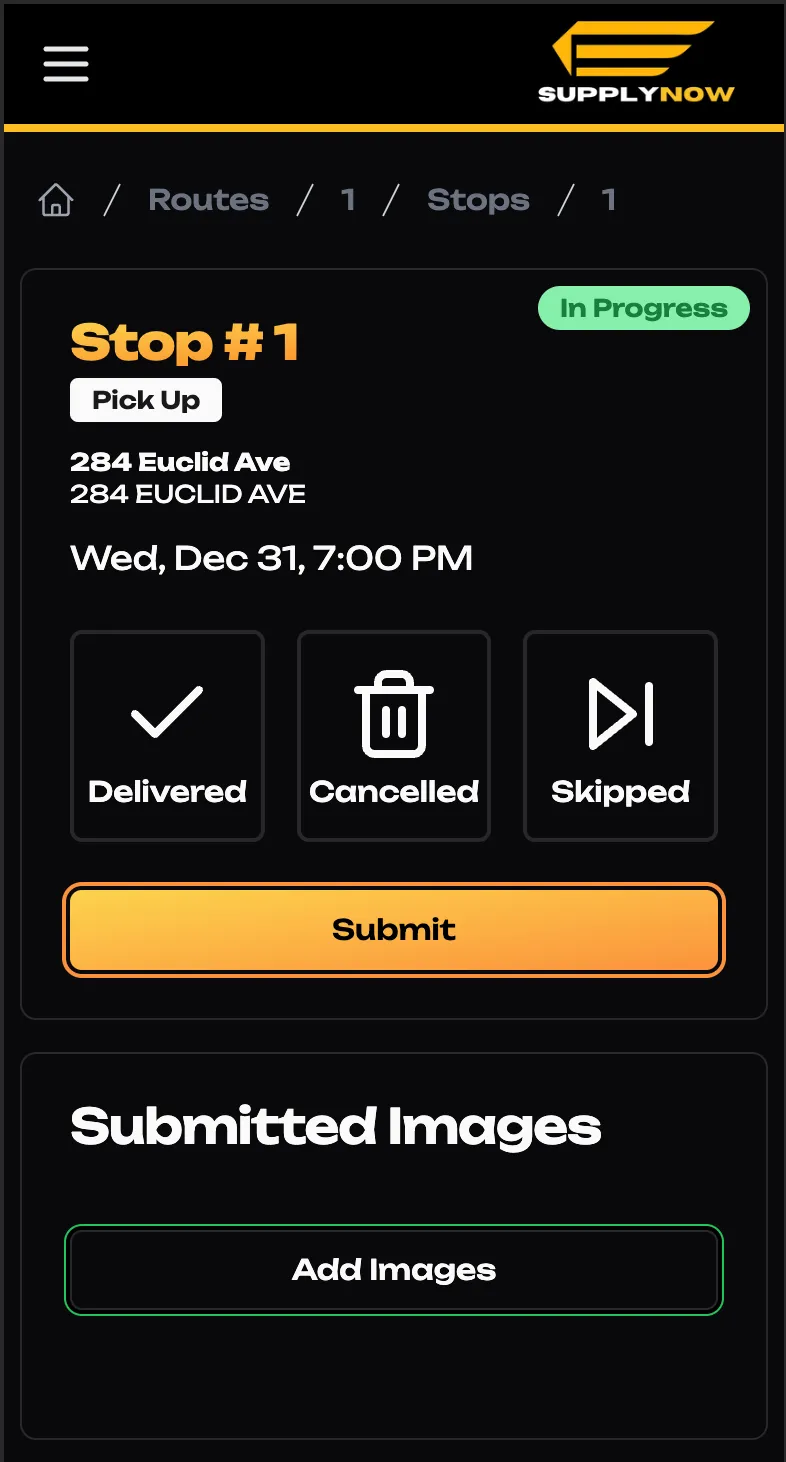
Upload Image
Follow the prompts to submit an image. Once uploaded, you’ll be able to see the picture on the bottom of the page.
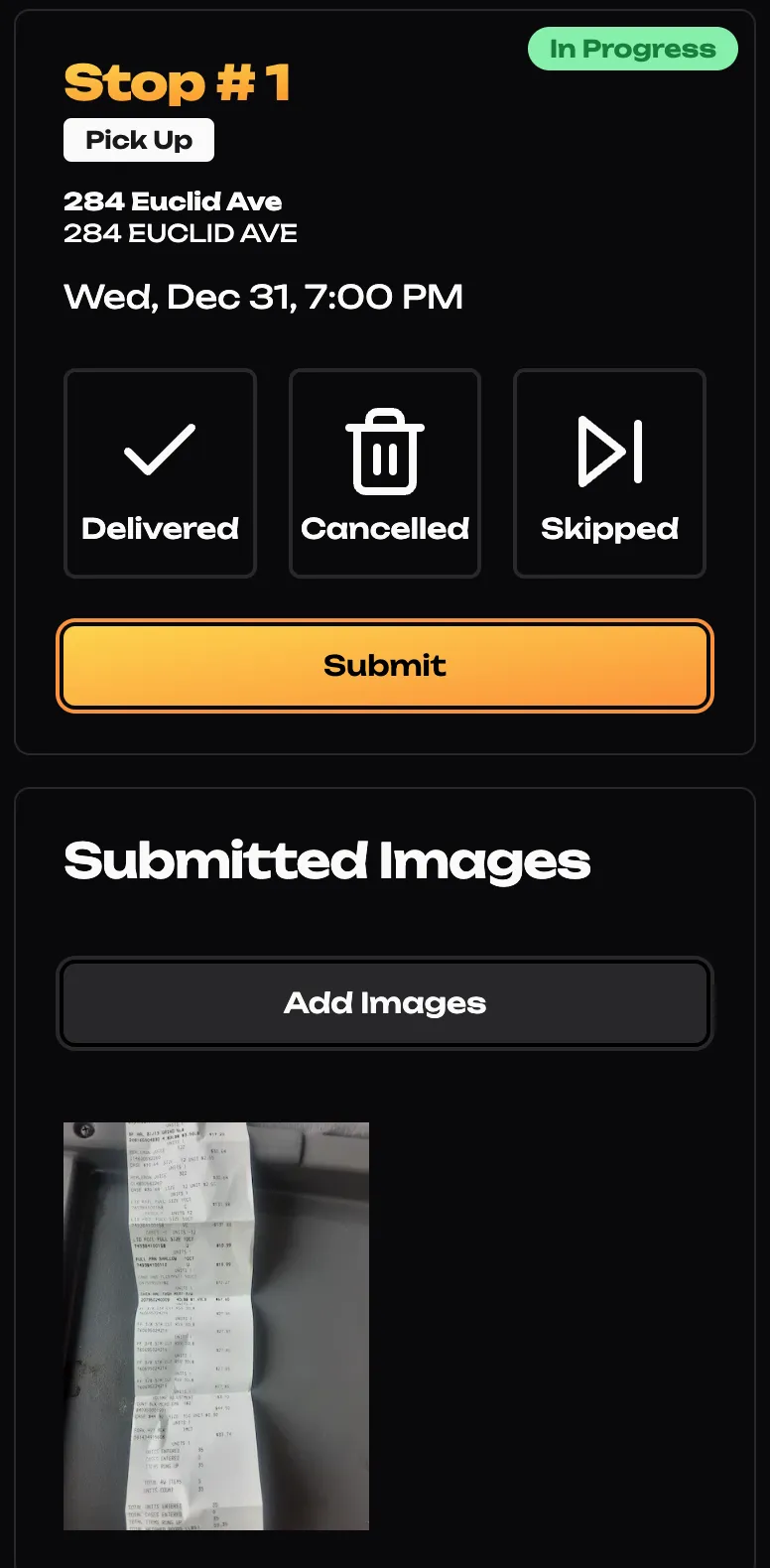
Complete the Stop
Select the status of the stop, and “Submit”.
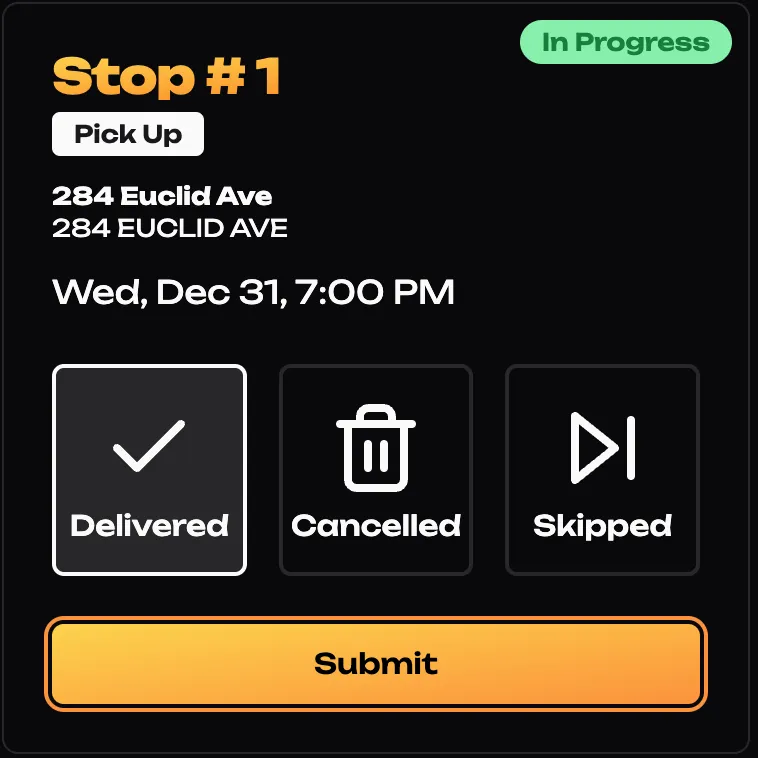
Drive, submit, repeat!
Follow the same steps to complete each stop. When you’re done, the “Complete Route” button will appear.
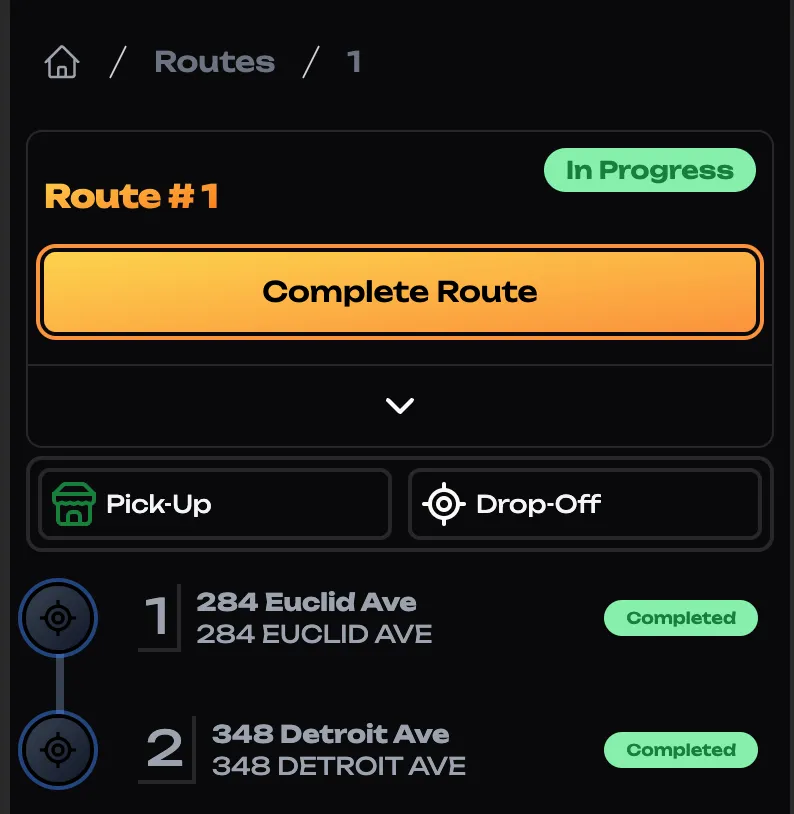
Complete your Route
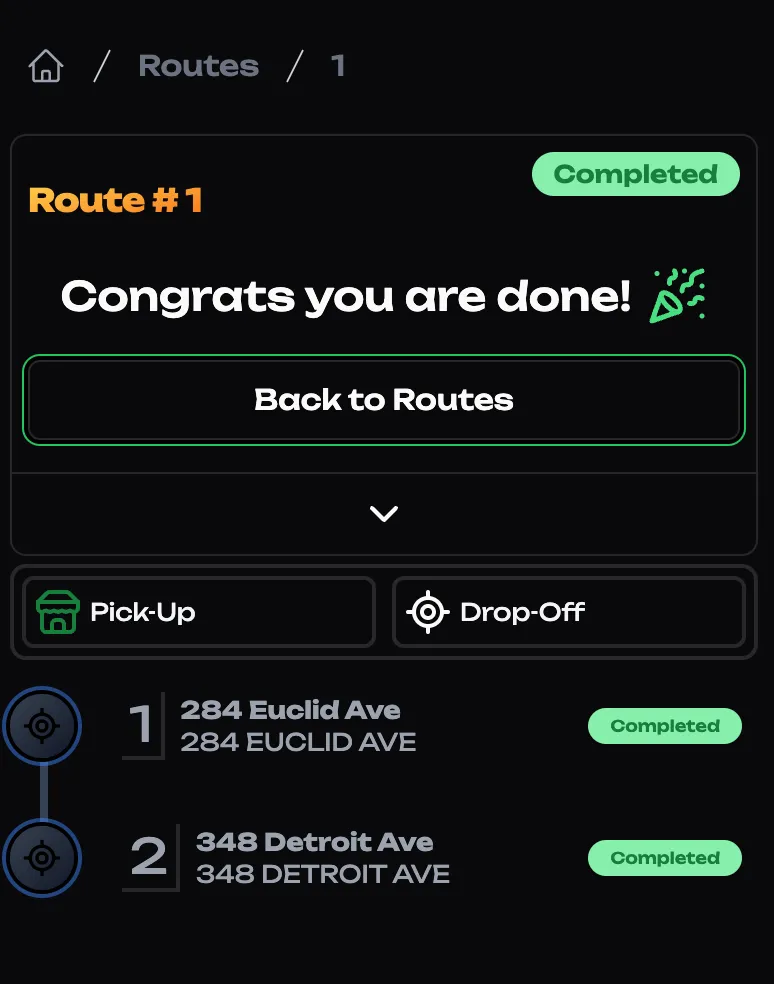
Boom! You’re done. If you did everything right, the route should look like this.