

External Invoices
Basics
Most of our customers are Food Service Distributors. When they need us to ship and deliver something, it’s quite common for us to receive an invoice of some sort.
We can process these invoices into orders in our system. The allows us to assign drivers and shoppers, keep our accounting accurate, and helps keeps information for our customers in one place.
Uploading an External Invoice
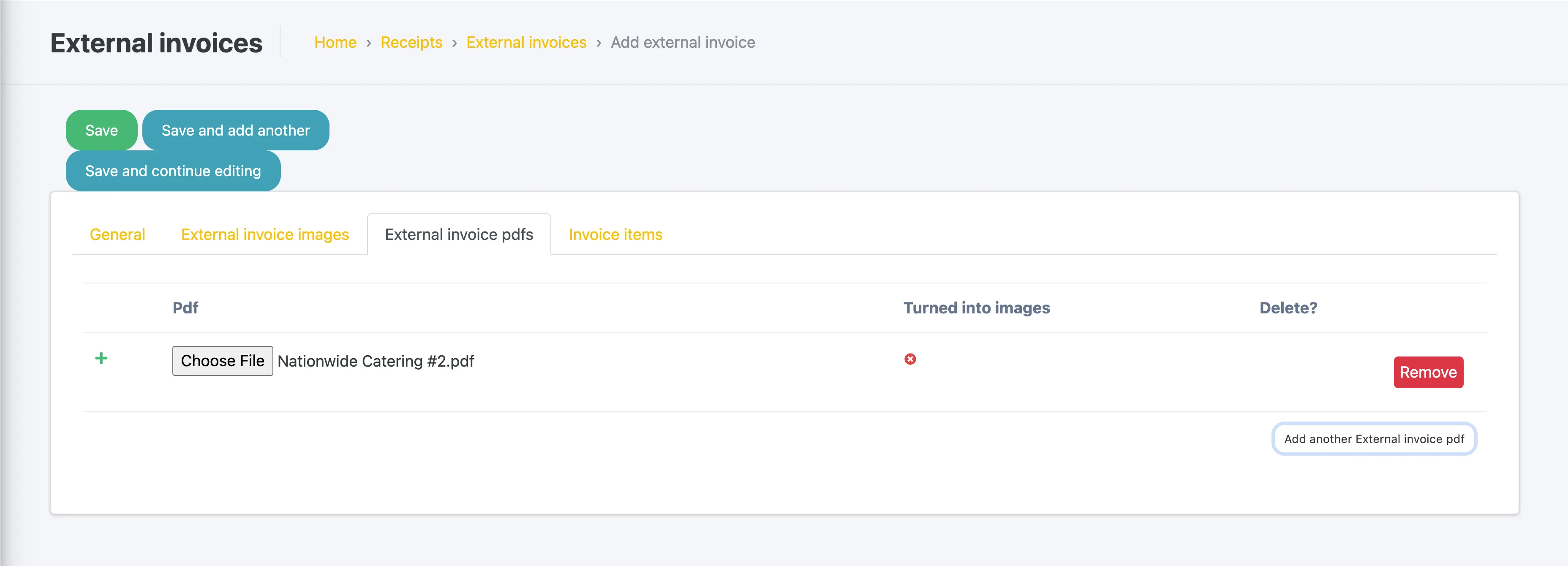
To add a new invoice, head over to “External Invoices” on the sidebar. Create a new one, and be sure to upload a pdf or images of the invoice.
Pre-Processing Invoices
There’s one step we need to take before letting it rip. We need to make sure that we have pictures of the invoice.
In order to extract the info from the invoice, we use what’s called Optical Character Recognition (OCR). This only works with images, not pdf files.
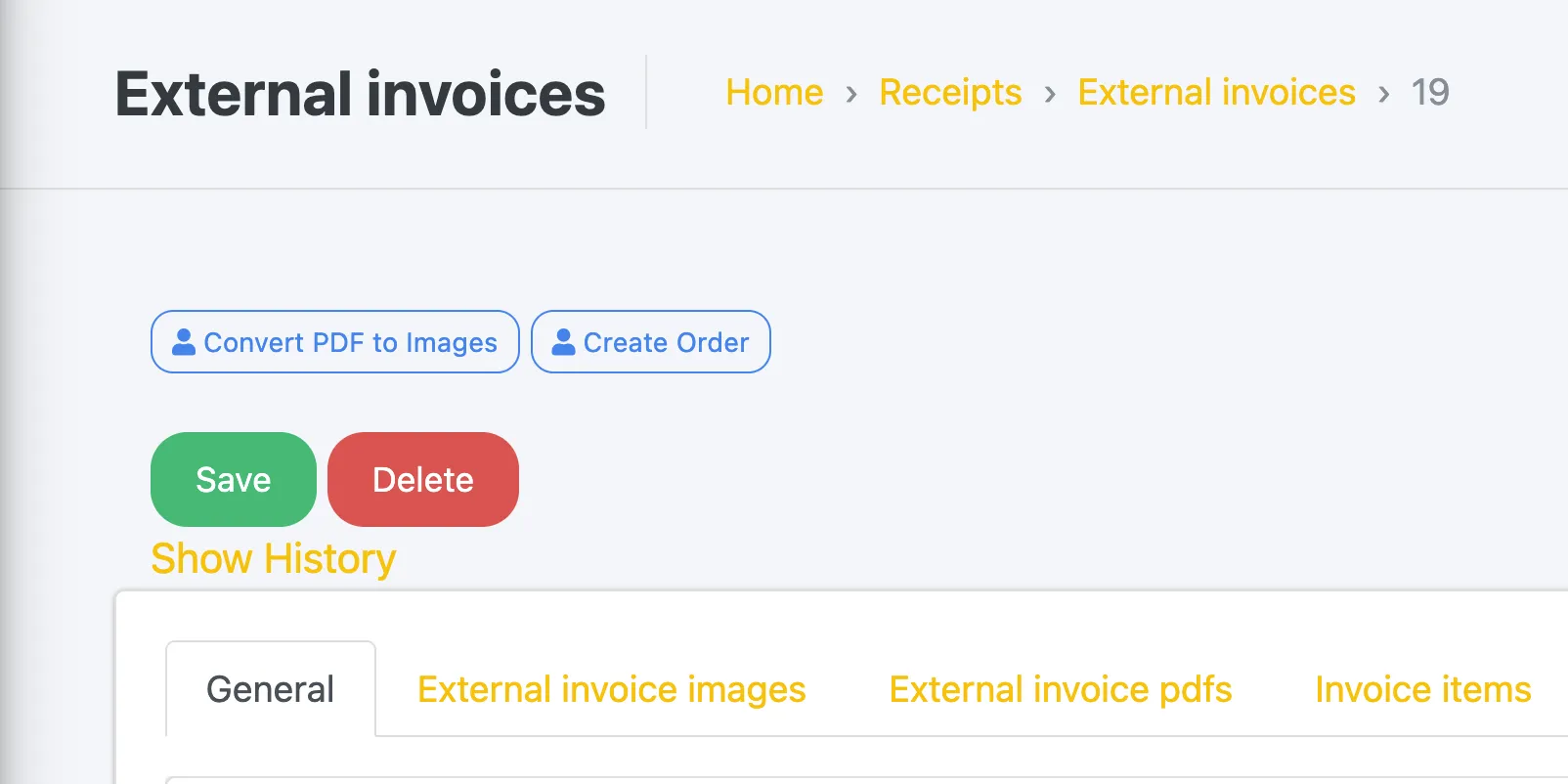
If you happen to submit pictures already, skip this step. Otherwise, all you need to do is click this button.
OCR Images
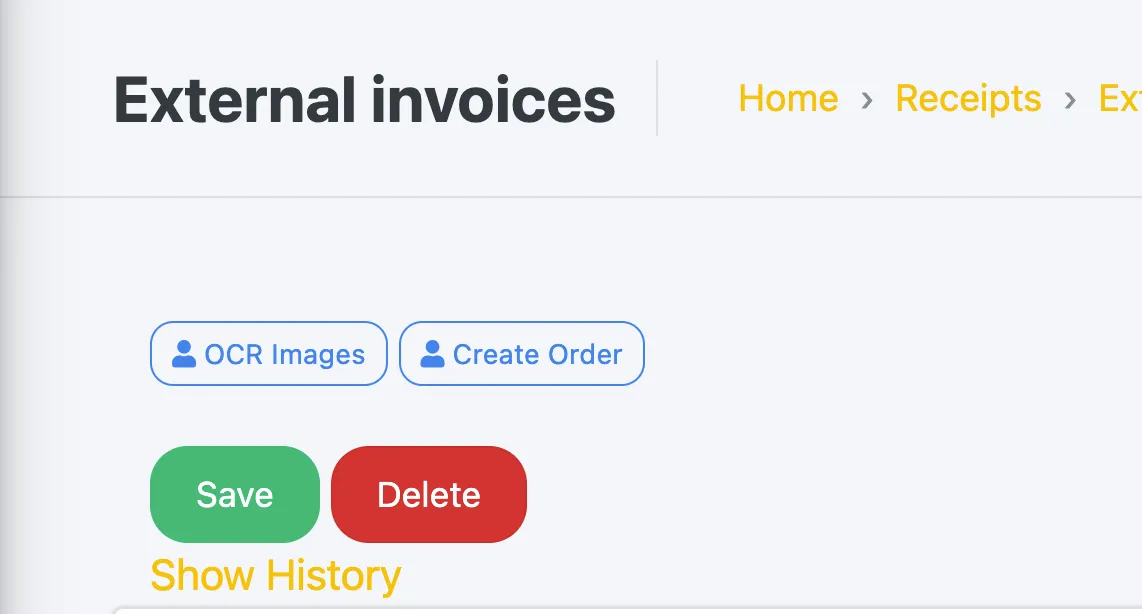
Cool, we’re good to go. Press this button now:
Results
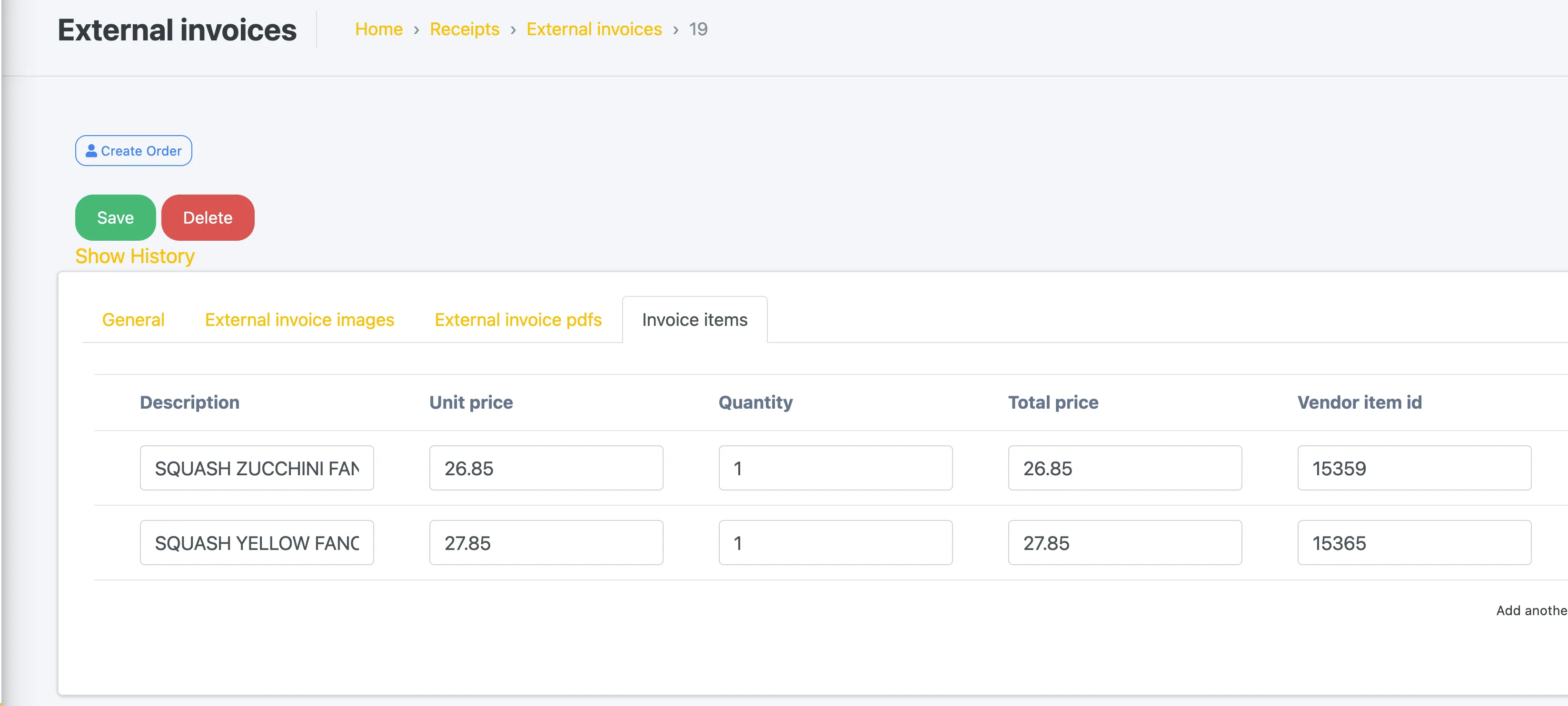
Now you should notice that the “External Invoice” record has both customer and vendor location. In addition, all the order items in the invoice now appear as “Invoice Items”
Create an Order
The last step is to create the order in our system. You’ll be prompted to confirm the locations extracted from the invoice.
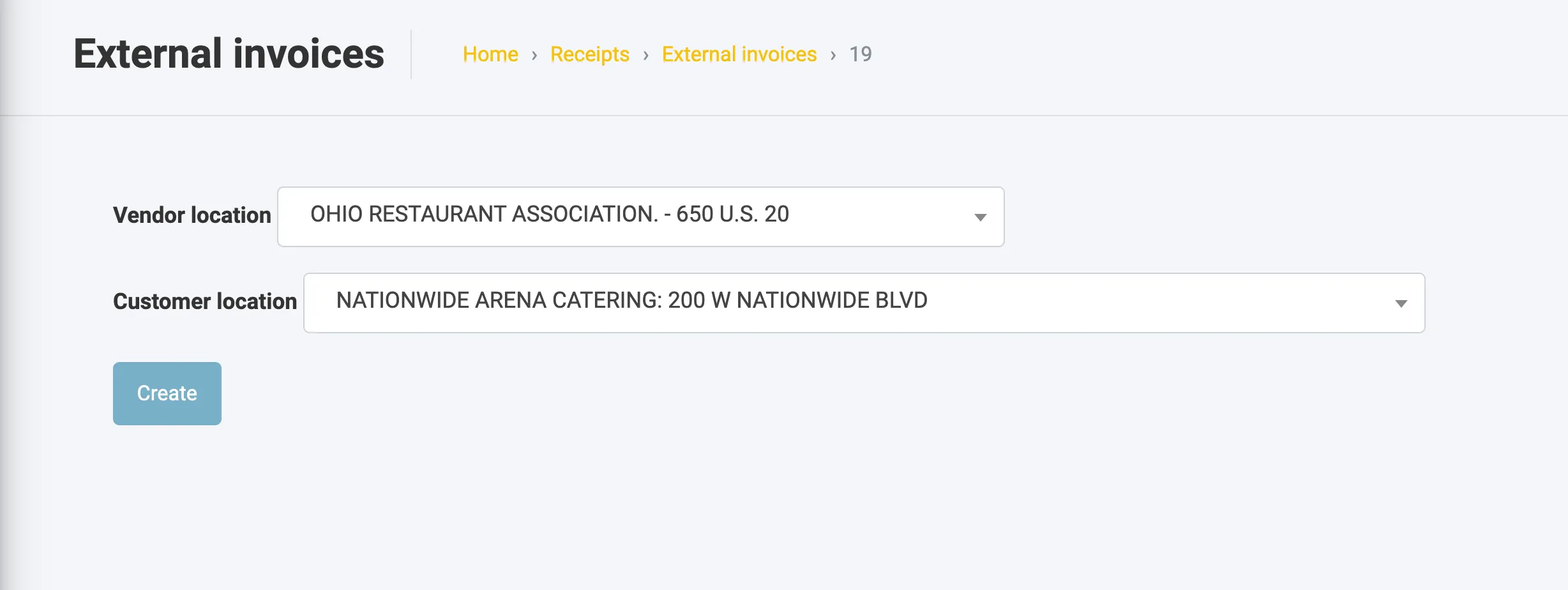
Once done, the record will look like this
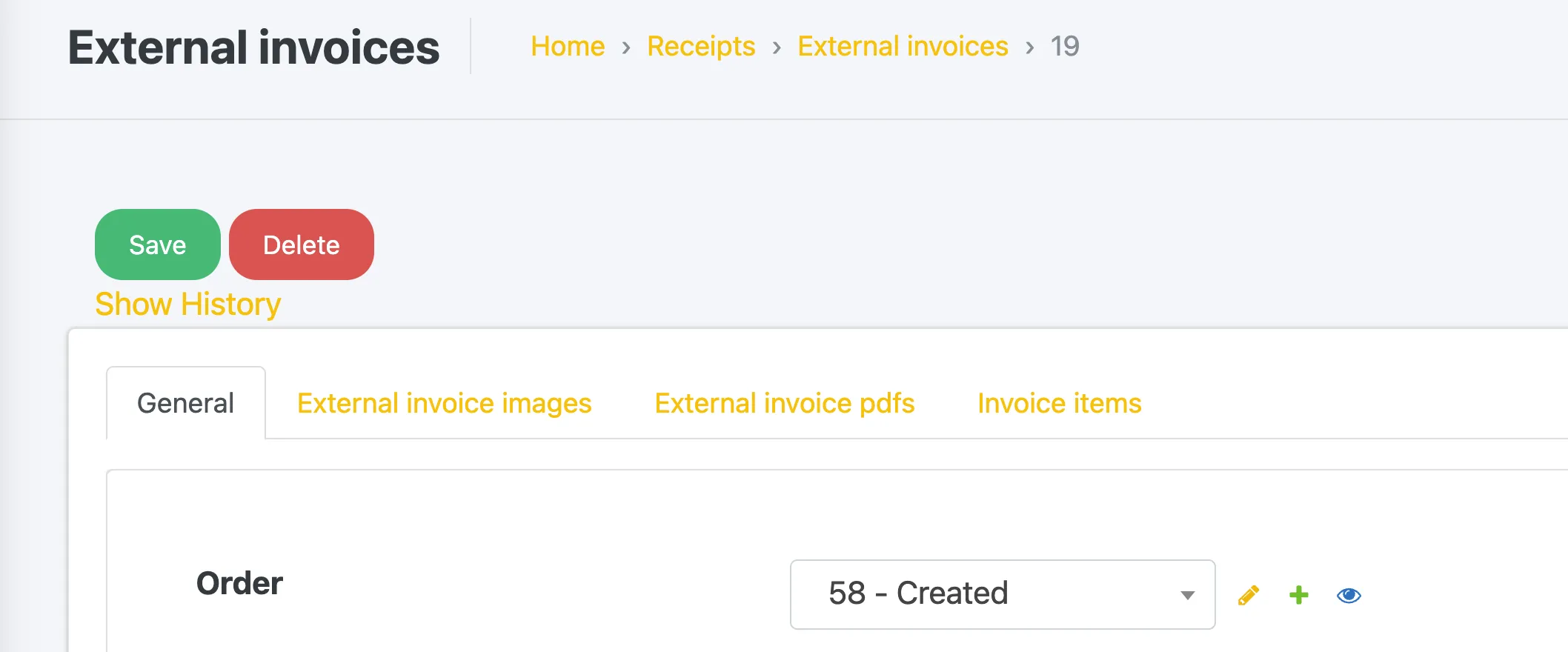
You can click the little eye, and get to work!