

Orders
The Basics
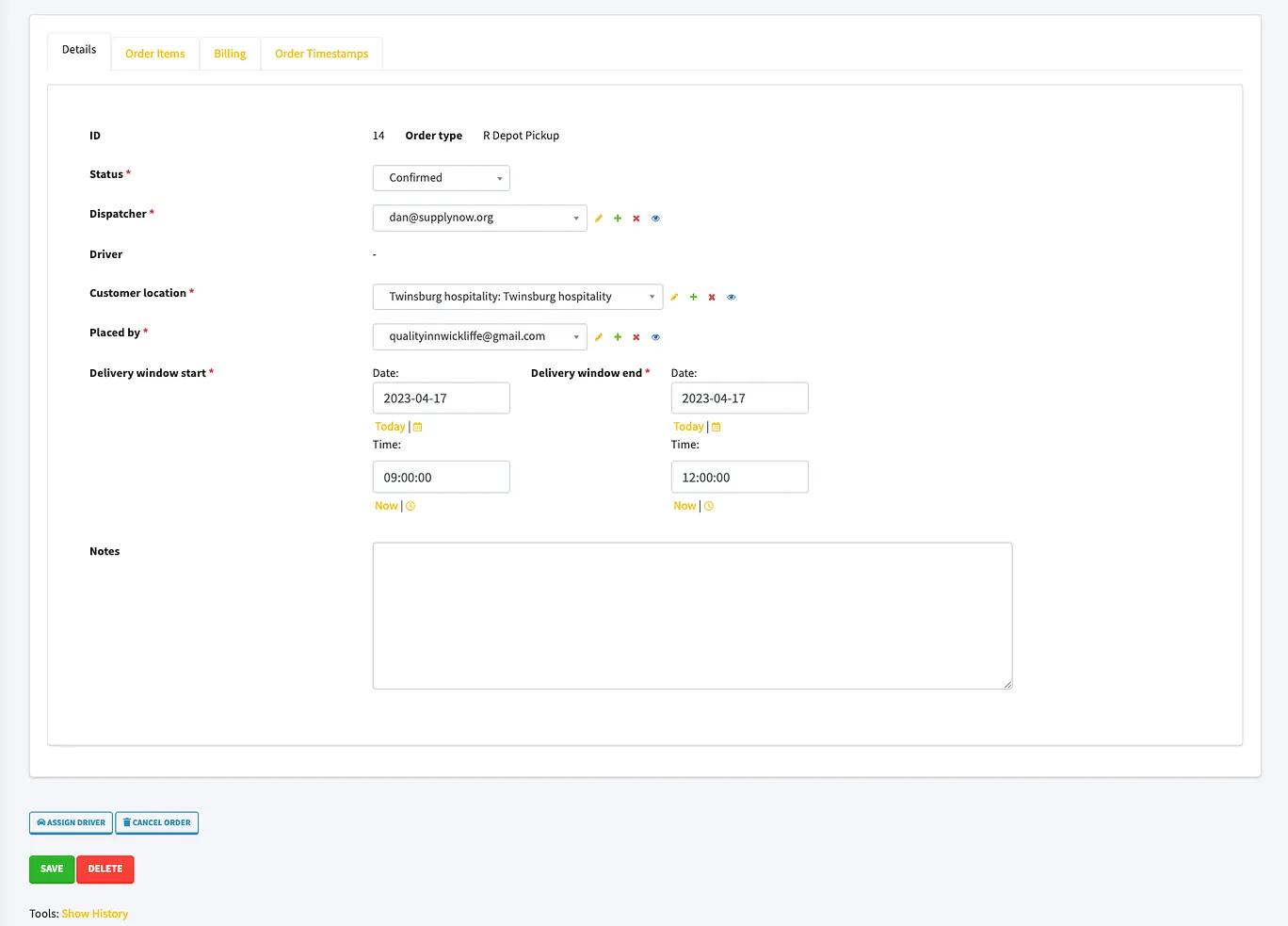
Here are all the fields included in an order
- Status
- Order Type
- Delivery window start (req)
- Delivery window end (req)
- Order Items
- Customer Location (req)
- Placed by (req) **
- Dispatcher
- Driver
- Billing
- Costs of Goods Sold
- Subtotal
- Delivery Fee
- Tax
- Total
- Net Revenue
- Timestamps
- Notes
“Placed By” must be a “Customer Location User.” See Location Permissions.
You can manage orders here https://app.supplynow.org/admin/orders/order/ You can manually create orders here https://app.supplynow.org/admin/orders/order/add/
Orders in the Admin Site
Here’s what an order looks like in the admin page
Order Status
The admin page for orders is designed to help dispatchers move the order along a series of steps. These steps are dependent on the “status” of the order. Here are all the different statuses an order have:
- CREATED
- AWAITING_DISPATCH
- PENDING_CONFIRMATION
- CONFIRMED
- ASSIGNED
- SHOPPING
- DELIVERING
- COMPLETED
- INVOICED
- PAID
- CANCELLED
Order Actions
Depending on the state of the order, different button will appear at the top left of the order page. For example:
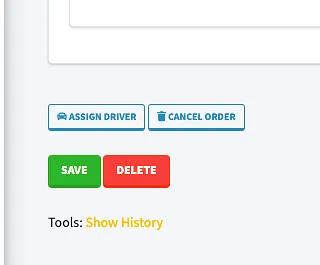
In this case the order is on the status “CONFIRMED” (meaning the next step is “ASSIGNED”), so the buttons prompt the dispatcher to assign a driver.
Each step or “Action” fires off notifications to both the Slack channels #dispatch-notification, and to the customer associated with the order. These let everyone stay up to date on the progress of their order. Actions also record a timestamp when they are completed, so we can keep track of analytics.
When the dispatcher has completed Actions required of them, no buttons will show.
How are orders created?
Orders are created in one of three ways:
- Manually on Admin
- SMS OrderSense (the text-line)
- Web OrderSense (the new vendor app)
- Restaurant Depot Click and Collect emails
- Restaurant Depot Shopping Lists
Confirming Orders
Asside from Click and Collect emails, we need to confirm SKUs with customers. The “Confirm Order” Action sends off an sms to the user who is “Placed By” on the Order record which asks them to text back if there are errors (dispatchers are notified on any incoming message).
Before confirming it is important to make sure all the fields are correct and that all order items reflect the actual name of the product being purchased for the customer.
How are orders dispatched to staff?
The action “Assign Staff” takes care of that step. It sends a notification to Slack under the #dispatch-notifications with all of the info required by the driverand shopper to complete the order: a link to the driver/shopper app.
How are orders billed?
The last action before an order is complete is “Create Invoice.” This uses the information in the order record to create an invoice on Stripe. When invoices are created, Stripe will take care of emailing the customer a copy of the invoice, along with a link they can use to pay.
Supported Payment Methods
The link currently supports:
- Cards
- ACH
- CashApp
Confirming Payment
When an invoiced is paid by the customer, Stripe will communicate with our system, and change the status to Paid automagically.
For order paid in cash or check, you must manually update the invoice on Stripe. Locate the invoice id. It can be found in the admin site under the billing tab of an order.
Go to https://dashboard.stripe.com/invoices/
Use the top search bar to look for the invoice id. Just paste it in. Once you found the invoice, click “Change invoice status” in the dropdown “More.” See below
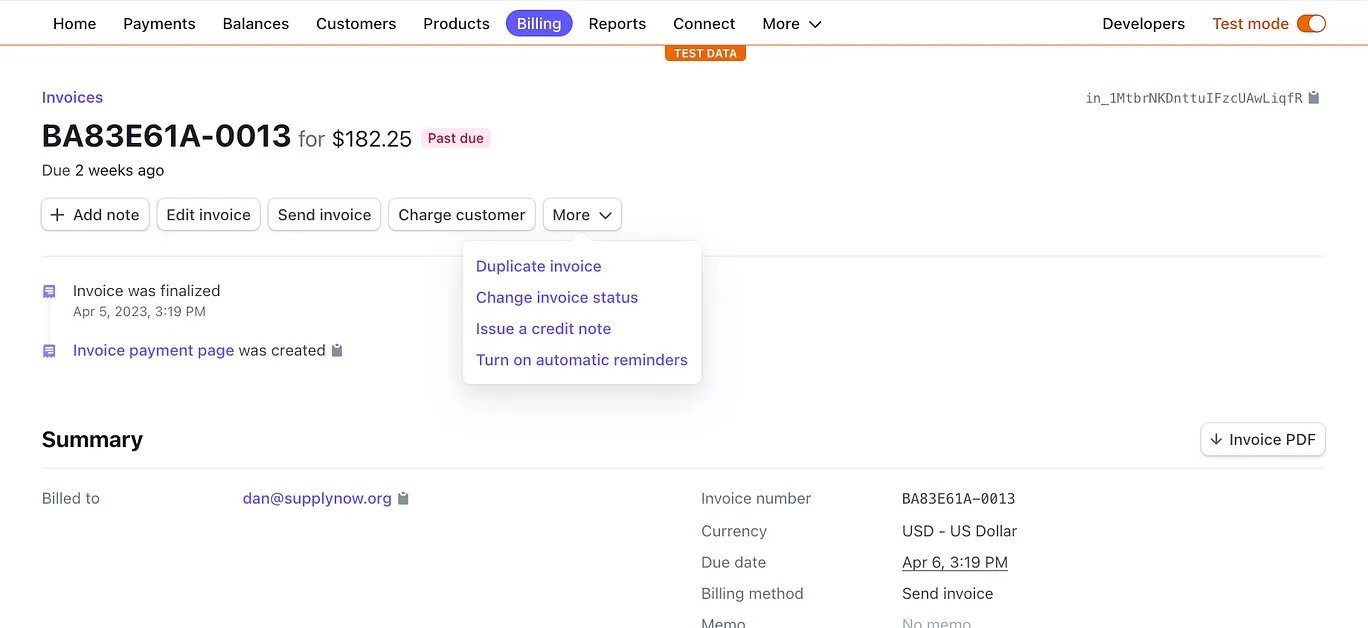
Be sure to enter the check number or other identifiable information in the text box that pops up
Billing Restaurant Depot
We don’t invoice customers for these orders, so once they are marked as completed these order are technically done from a dispatching perspective. We bill Restaurant Depot directly for our net revenues from these orders, and reconciliation is our responsibility.
Payout Reports
We receive a varienty of payout reports from Restaurant Depot. These are confirmations of payment that include all adjustments to payment due to Out of Stock, Partial Stock, or Cancellation.
We must try our best to keep our system as updated as possible based on the reports given to us by Depot’s system.